
How to Start Using LifeOS
If this is your first time using LifeOS, start with Start LifeOS in 10 Minutes and practice with the example vault first. This page is better used after the example works, when you want to understand folder structure, plugin installation, and manual setup.
Directory Structure Description
It is recommended to read through the directory structure once, as it helps to deepen your understanding!
The directory below is interactive and clickable. Click the + sign to expand!
Setting Up a Repository from Scratch
Installing the LifeOS Plugin
Choose one of the following
Basic
Click here to open Obsidian and install the LifeOS plugin
Paid Version
Download the following three files and place them in the corresponding files in the Obsidian repository's .obsidian/plugins/lifeos-pro/ directory.
Right-click this link, click "Save Link As...", to download
.obsidian directory is a hidden folder, if you cannot see it, you need to display it through the following method
- MacBook: Use the shortcut key Command + Shift + .
- Windows: In the current folder, select "View > Show", then select "Hidden items" to view hidden files and folders
Installing Third-Party Plugins
-
Dataview: Click here to open Obsidian and install the Dataview plugin
-
Templater: Click here to open Obsidian and install the Templater plugin
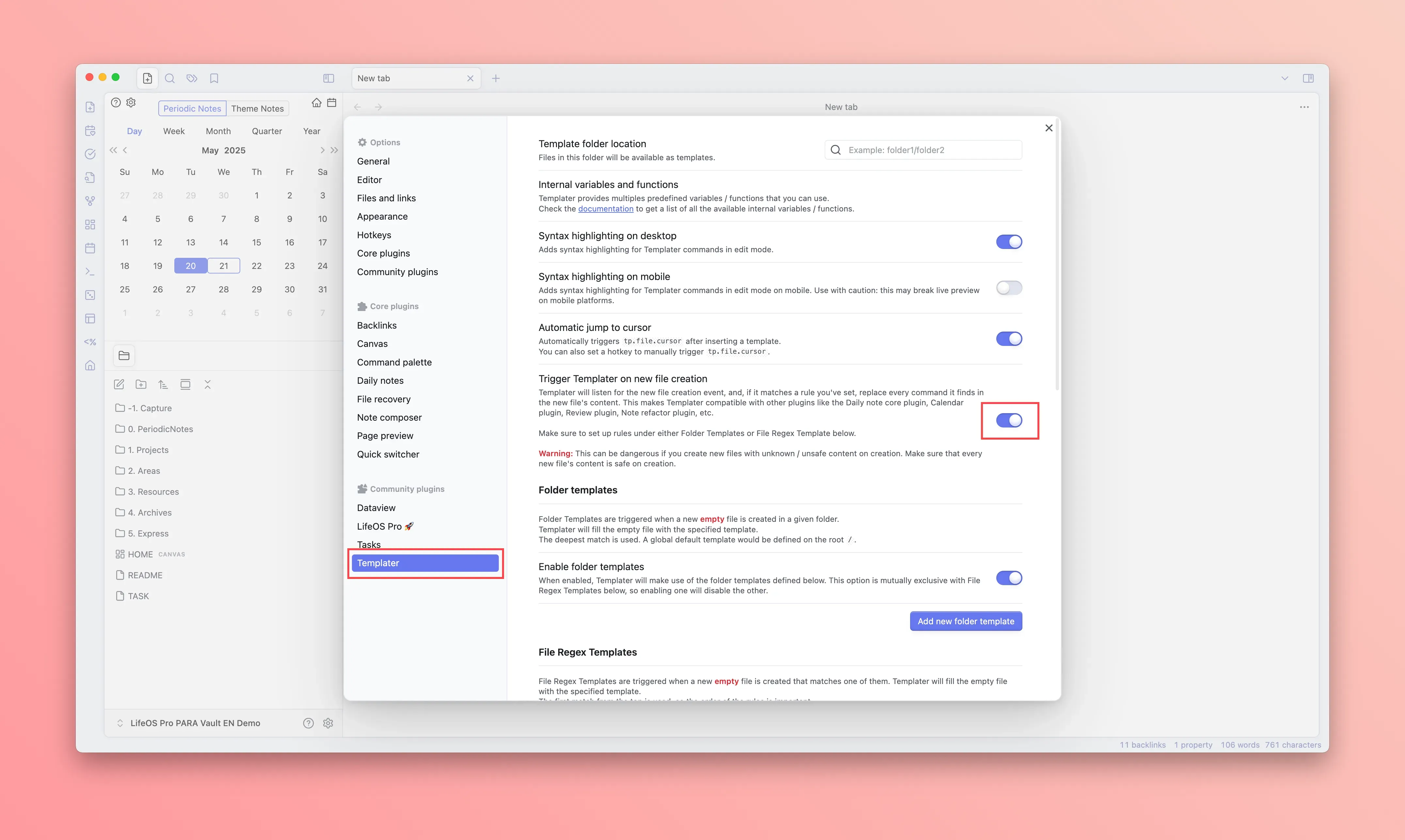
Refer to the image below, enable "Trigger Templater on new file creation" in Templater
Configuring Periodic Notes
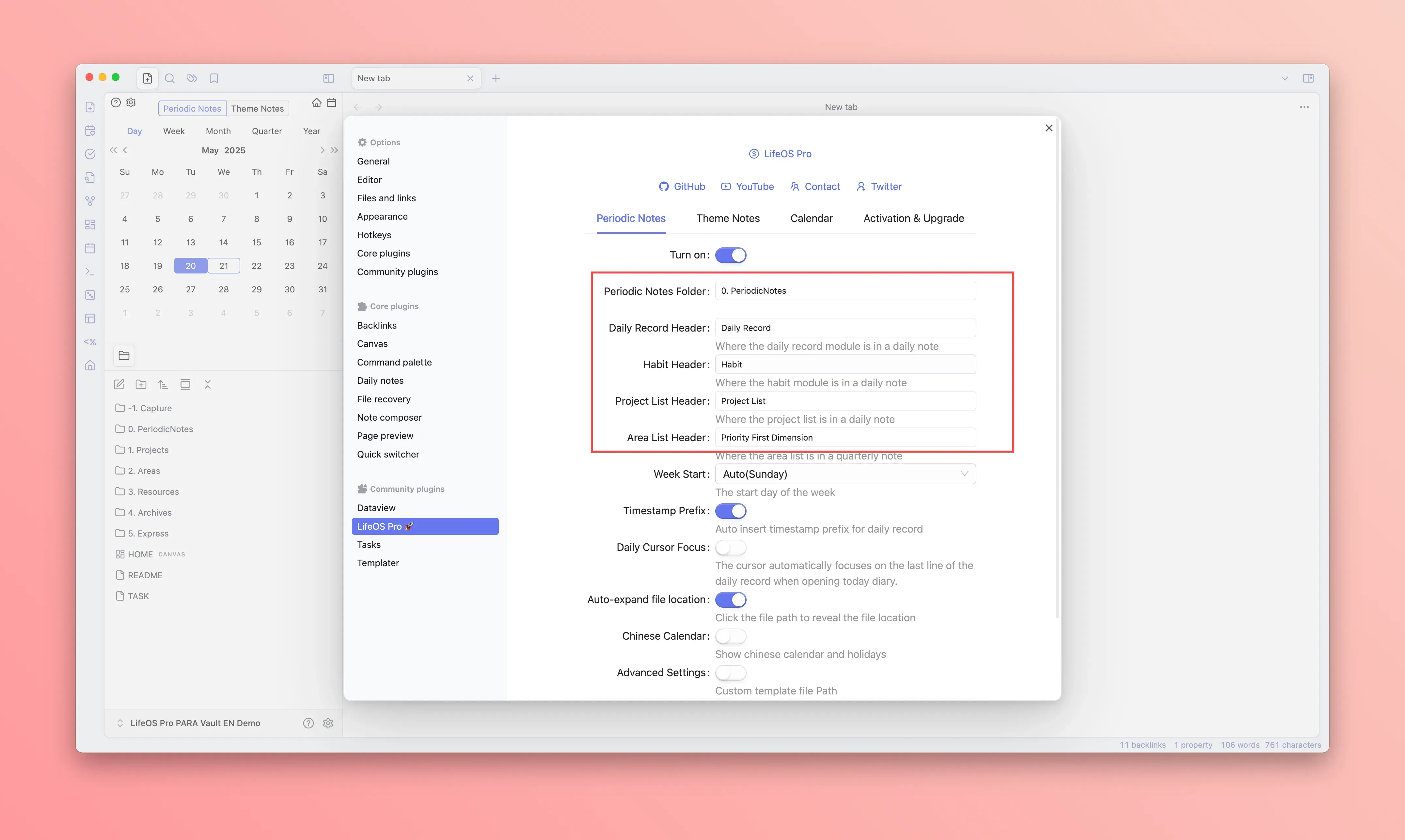
Refer to the image below, configure your periodic notes directory and the titles for each module
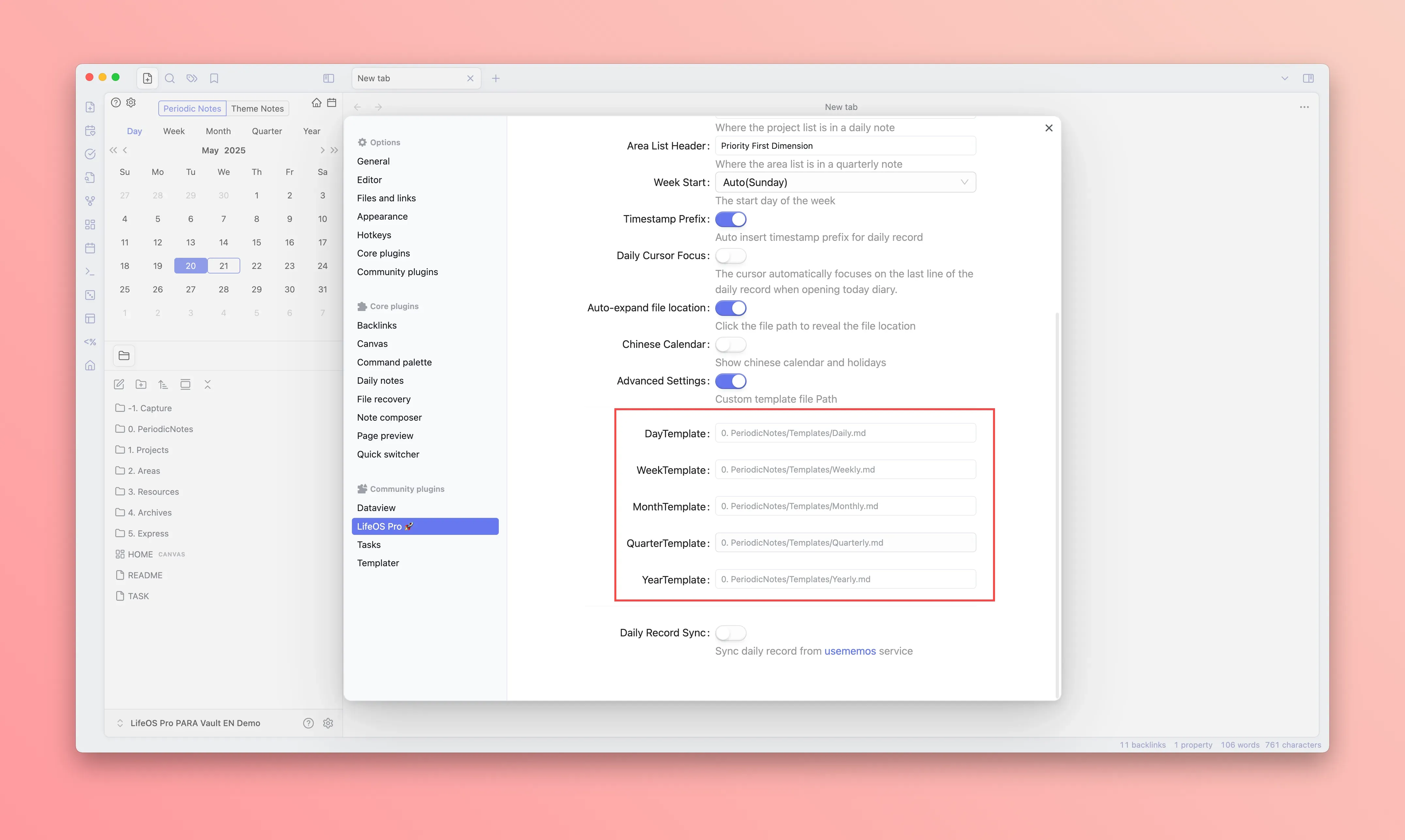
Refer to the image below, configure your template files for periodic notes. Each time you create a periodic note, it will use the corresponding template to create a new note
Configuring Theme Notes
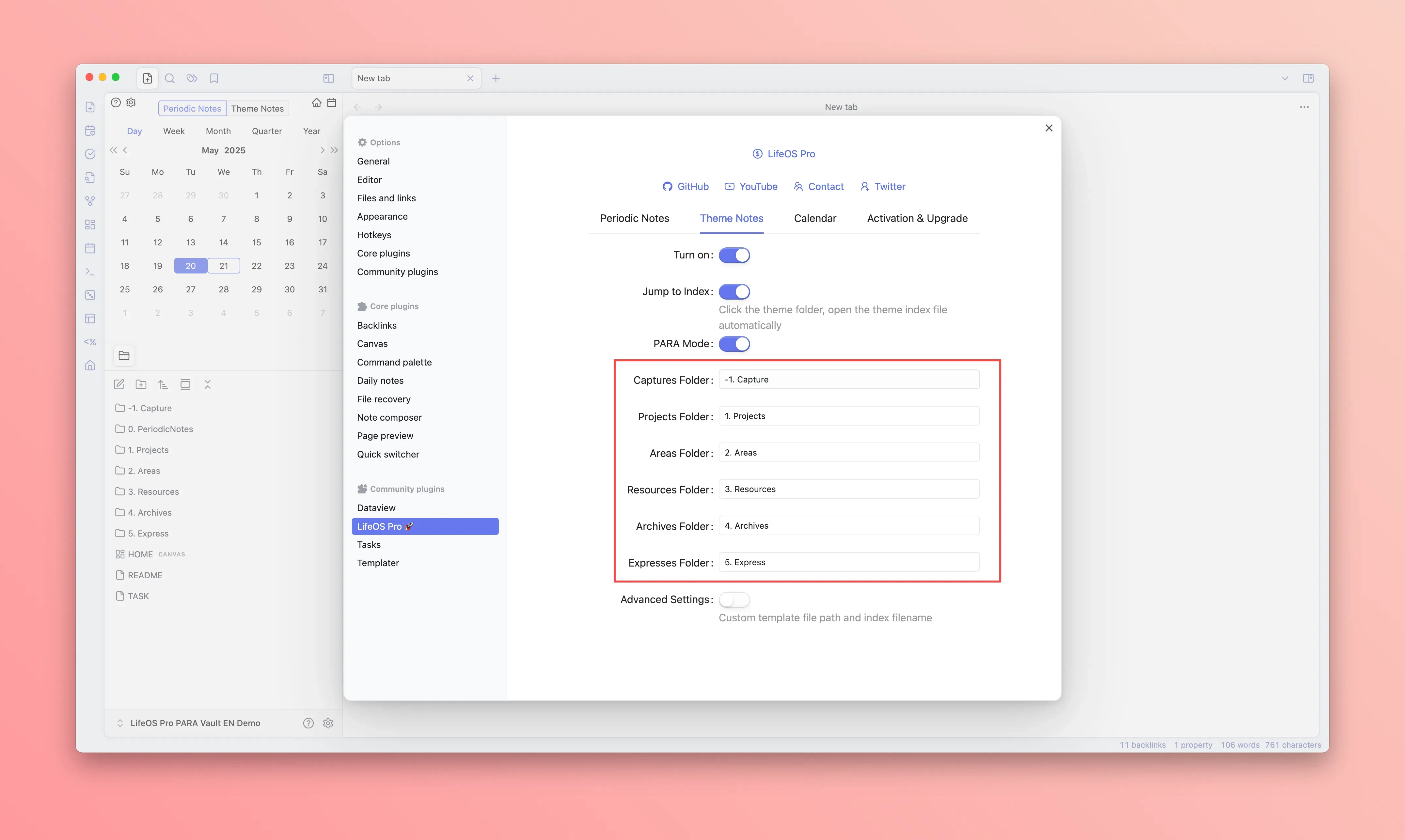
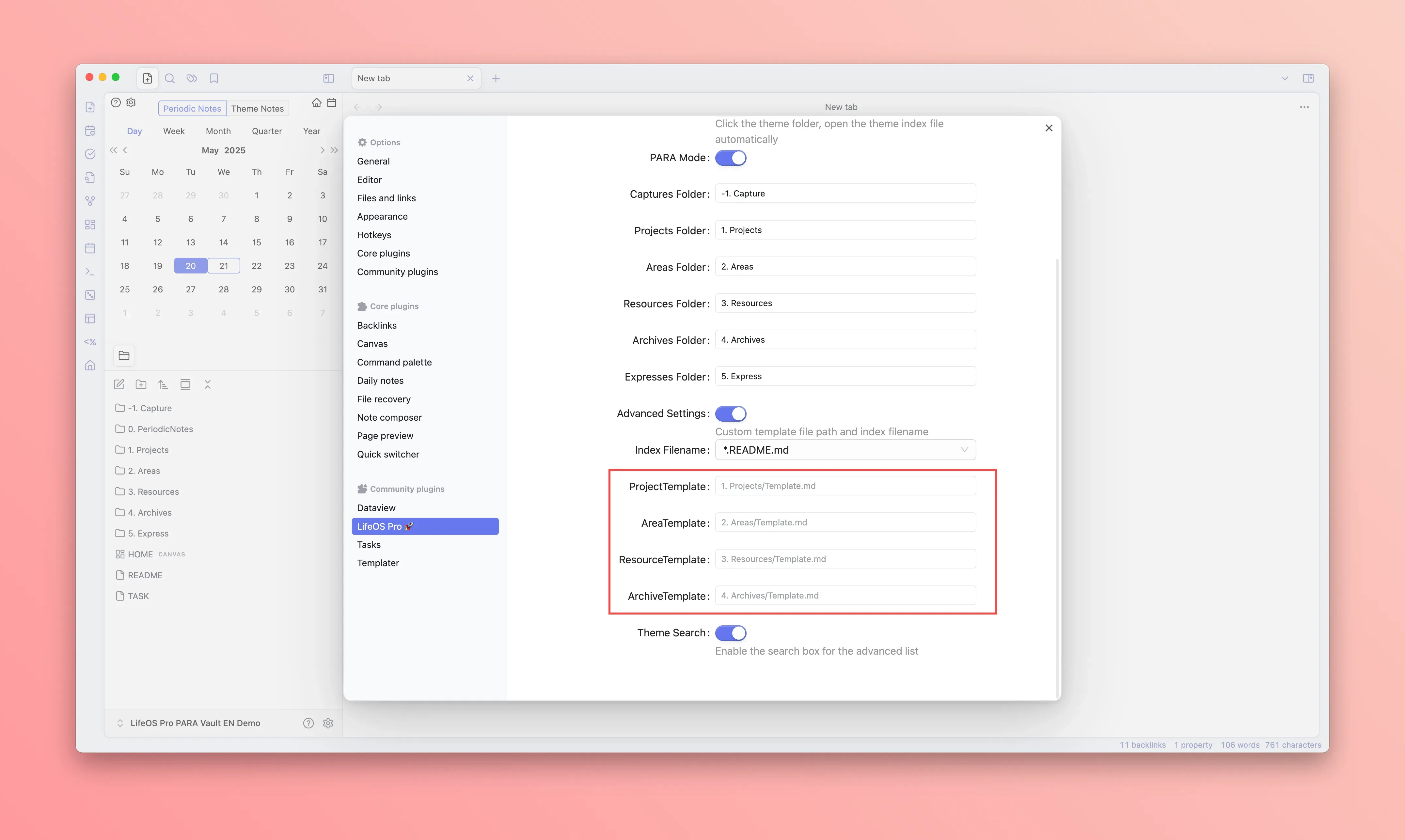
Refer to the image below, configure your theme notes directory and the titles for each module
Refer to the image below, configure your template files for theme notes. Each time you create a theme note, it will use the corresponding template to create a new note
Using a Ready-Made Example Repository
Refer to: "Scenario 2"