
How to Start Using LifeOS

Directory Structure Description

It is recommended to read through the directory structure once, as it helps to deepen your understanding!

The directory below is interactive and clickable. Click the + sign to expand!

-1. Capture // Used to practice the CODE model's Capture step
README.md// Capture index file
0. PeriodicNotes// Periodic notes system, each year has its own folder
README.md// Usage instructions for periodic notes
2023
Daily// Diary directory, each month has its own folder
06
2023-06-01.md// Diary note
2023-06-02.md
2023-06-03.md
Weekly// Weekly note directory
2023-21.md// Weekly note
2023-W22.md
Monthly// Monthly note directory
2023-06.md// Monthly note
2023-07.md
Quarterly// Quarterly note directory
2023-Q1.md// Quarterly note
2023-Q2.md
2023.md// Annual log
Templates// Template files for periodic notes, use corresponding templates when creating daily notes, weekly logs, monthly logs, quarterly logs, and annual logs
Daily.md
Monthly.md
Quarterly.md
Weekly.md
Yearly.md
1. Projects// PARA notes' Project category
README.md// Project usage instructions
Template.md// Project template file, used when creating a project
personal-brand-wot-sharing-meeting// Project example
Attachments
PPT materials
bit-logo.svg
warning.svg
ChatGPT
Why Frontend Engineering.md
What is Frontend Engineering.md
The Contents of Frontend Engineering.md
PPT Outline.md
2023-WOT-Share Session.README.md// Project index file, filename format requirement like XXX.README.md
Architecture Diagrams
Monorepo.svg
Polyrepo.svg
Rehearsal
Transcript.md
Existing Problems.md
Rehearsal Notes.md
Potential Audience Questions.md
Live Presentation Tips.md
Main Outline.md
Previous Themes.md
x company's Practice in Frontend Engineering.pdf
2. Areas// PARA notes' Area category
README.md// Area usage instructions
Template.md// Area template file, used when creating a project
personal-brand// Area example
personal-brand.README.md// Area index file, filename format requirement like XXX.README.md
work
work.README.md
marriage-relationship
marriage-relationship.README.md
parental-relationship
parental-relationship.README.md
parenting
parenting.README.md
3. Resources// PARA notes' Resource category
README.md// Resource usage instructions
Template.md// Resource template file, used when creating a project
knowledge-management// Resource example
knowledge-management.README.md
photography
photography.README.md
4. Archives// PARA notes' Archive category
README.md// Archive usage instructions
Template.md// Archive template file, used when creating a project
parenting-take-a-name// Archive example
program
README.md
index.js
nameCandidateList.md
package.json
Five Elements
Earth.md
Wood.md
Water.md
Fire.md
Metal.md
Single Characters.md
Rules.md
Lin Yiru.png
parenting-take-a-name.README.md
Candidates List.md
Programmed Naming.md
Five Elements and Meaning Lookup.md
5. Express// Used to practice the CODE model's Express step
README.md// Express index file
README.md
Home.canvas
Tasks.md

Setting Up a Repository from Scratch

Installing the LifeOS Plugin

Choose one of the following

Free Version

Click here to open Obsidian and install the LifeOS plugin

Download the following three files and place them in the corresponding files in the Obsidian repository's .obsidian/plugins/lifeos-pro/ directory.

Right-click this link, click "Save Link As...", to download

Warning

.obsidian directory is a hidden folder, if you cannot see it, you need to display it through the following method

  1. MacBook: Use the shortcut key Command + Shift + .
  2. Windows: In the current folder, select "View > Show", then select "Hidden items" to view hidden files and folders

Installing Third-Party Plugins

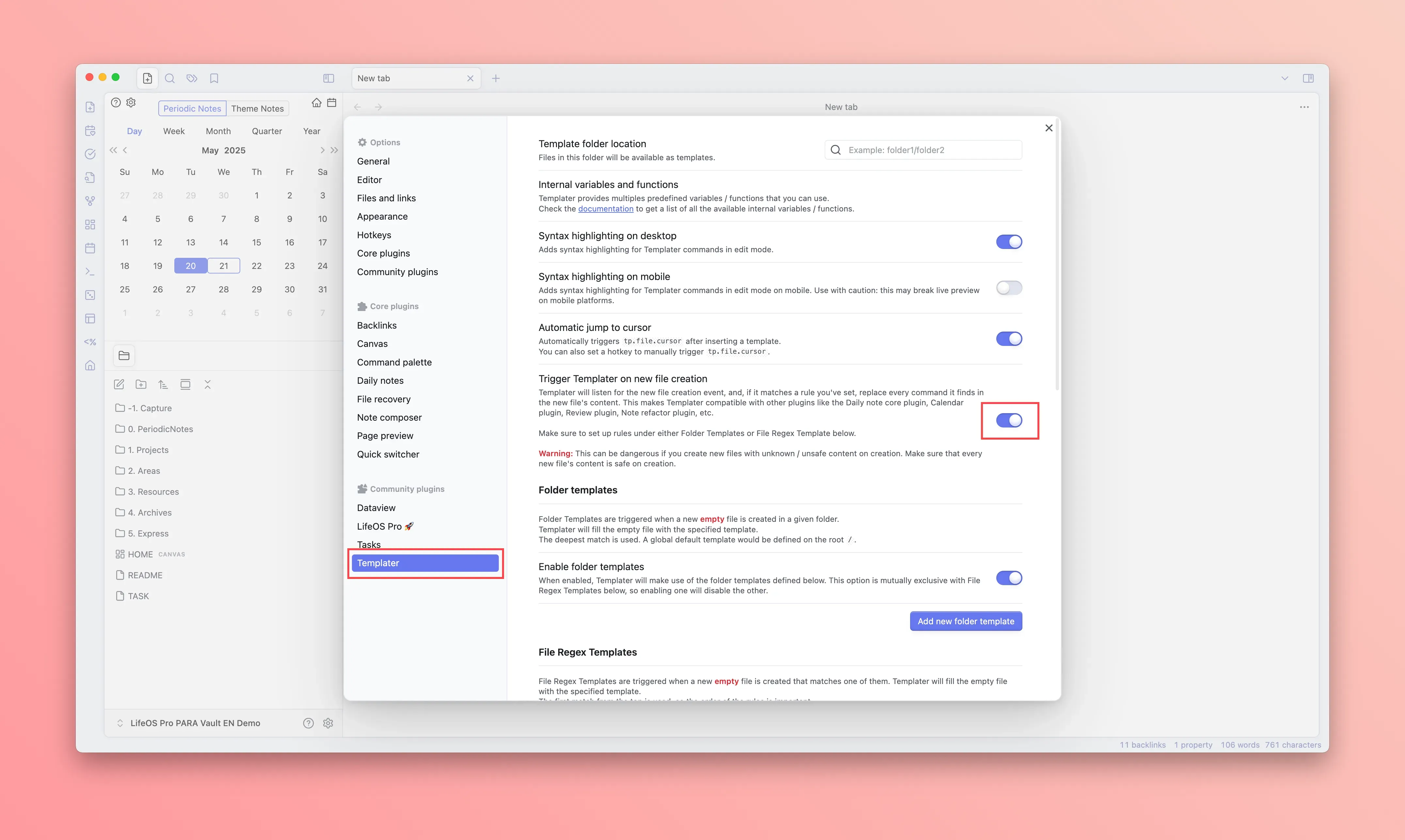
Refer to the image below, enable "Trigger Templater on new file creation" in Templater
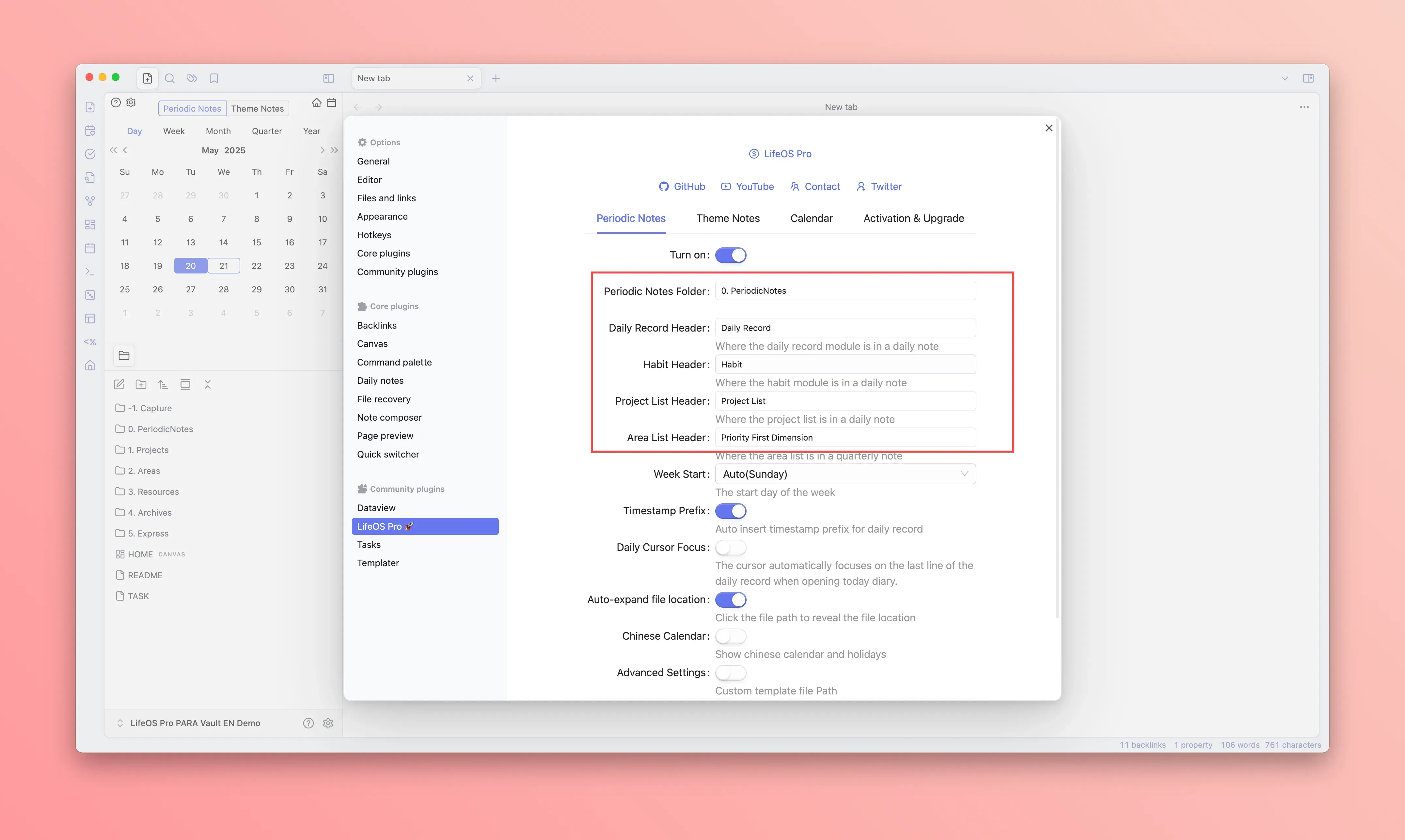
Configuring Periodic Notes

Refer to the image below, configure your periodic notes directory and the titles for each module
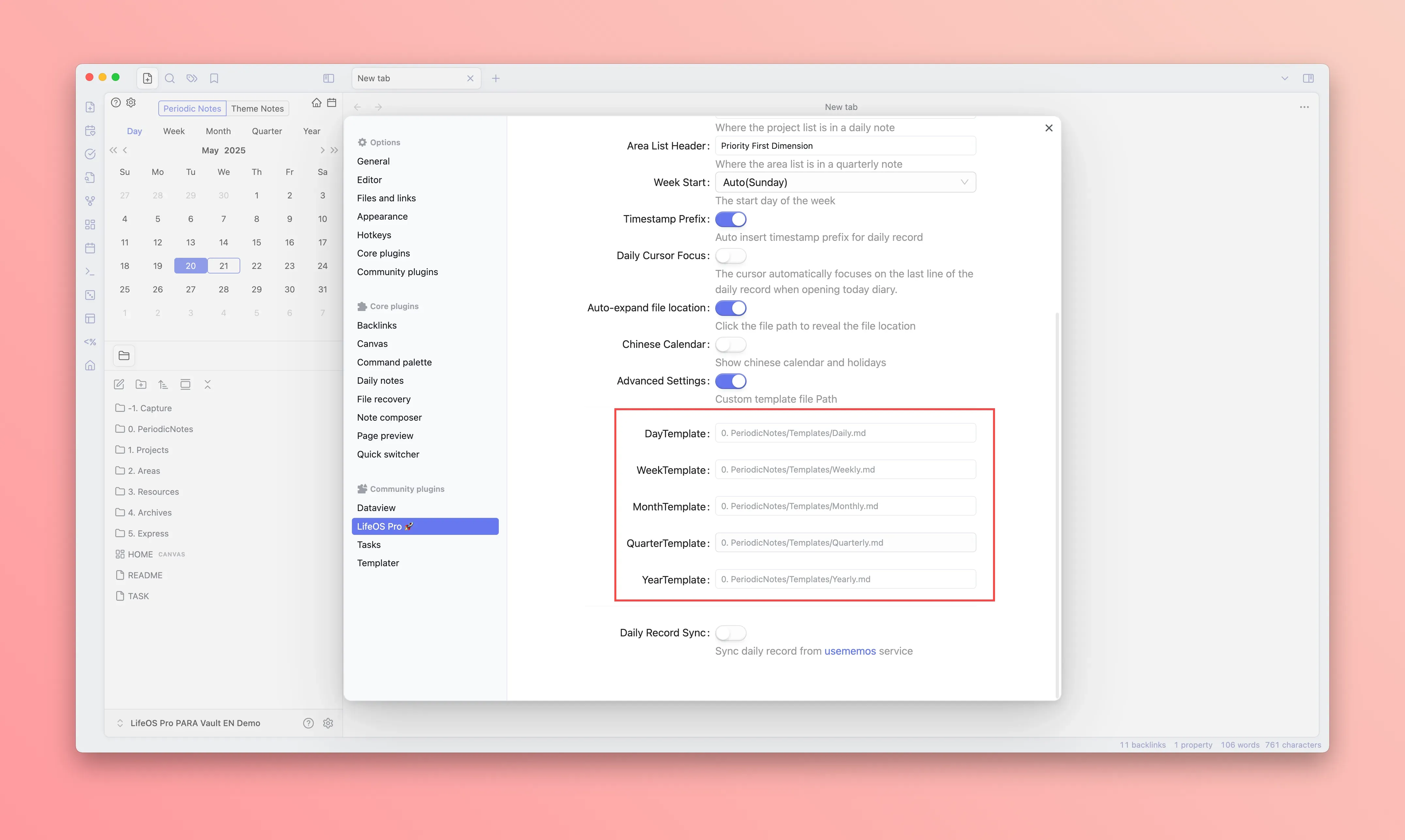
Refer to the image below, configure your template files for periodic notes. Each time you create a periodic note, it will use the corresponding template to create a new note
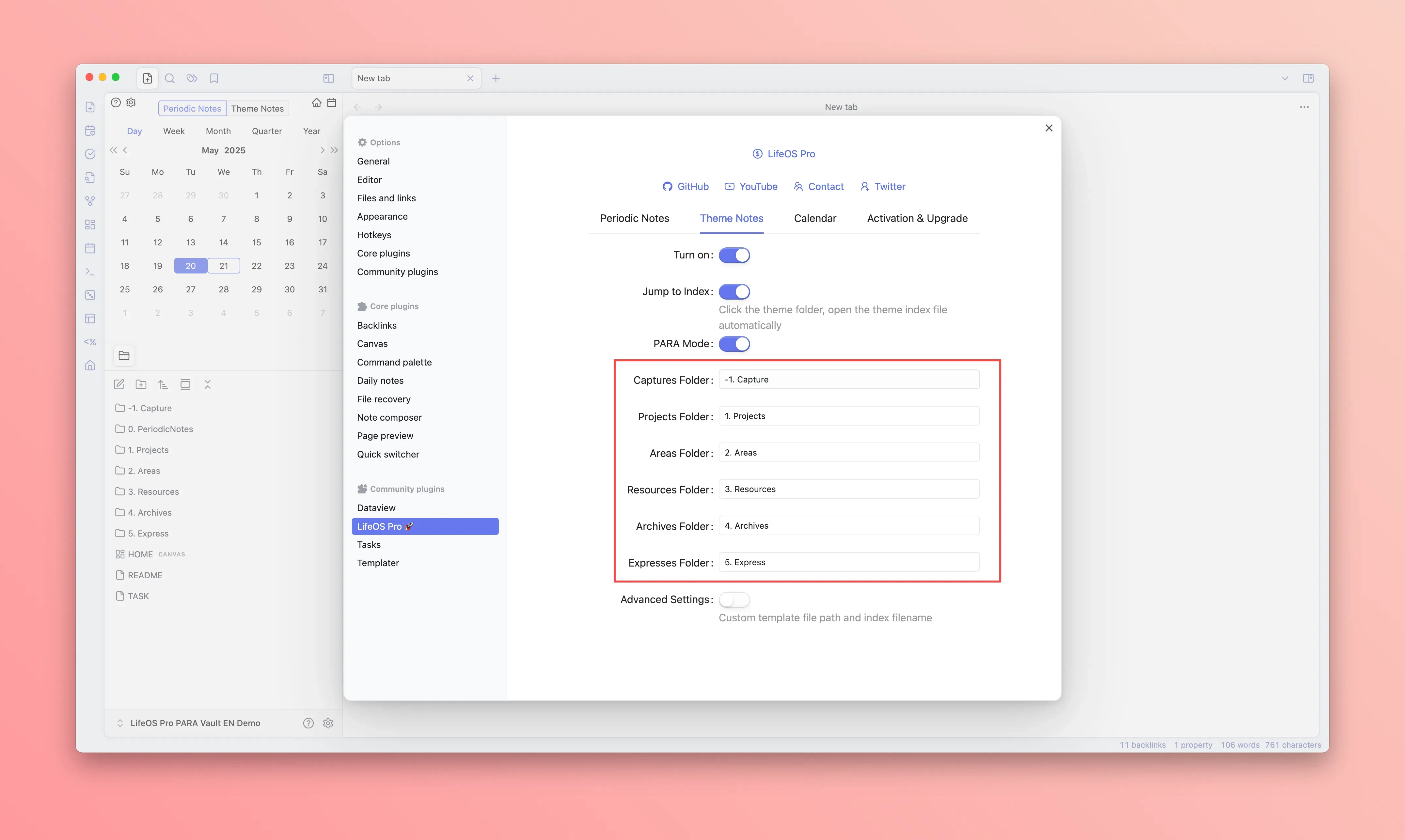
Configuring Theme Notes

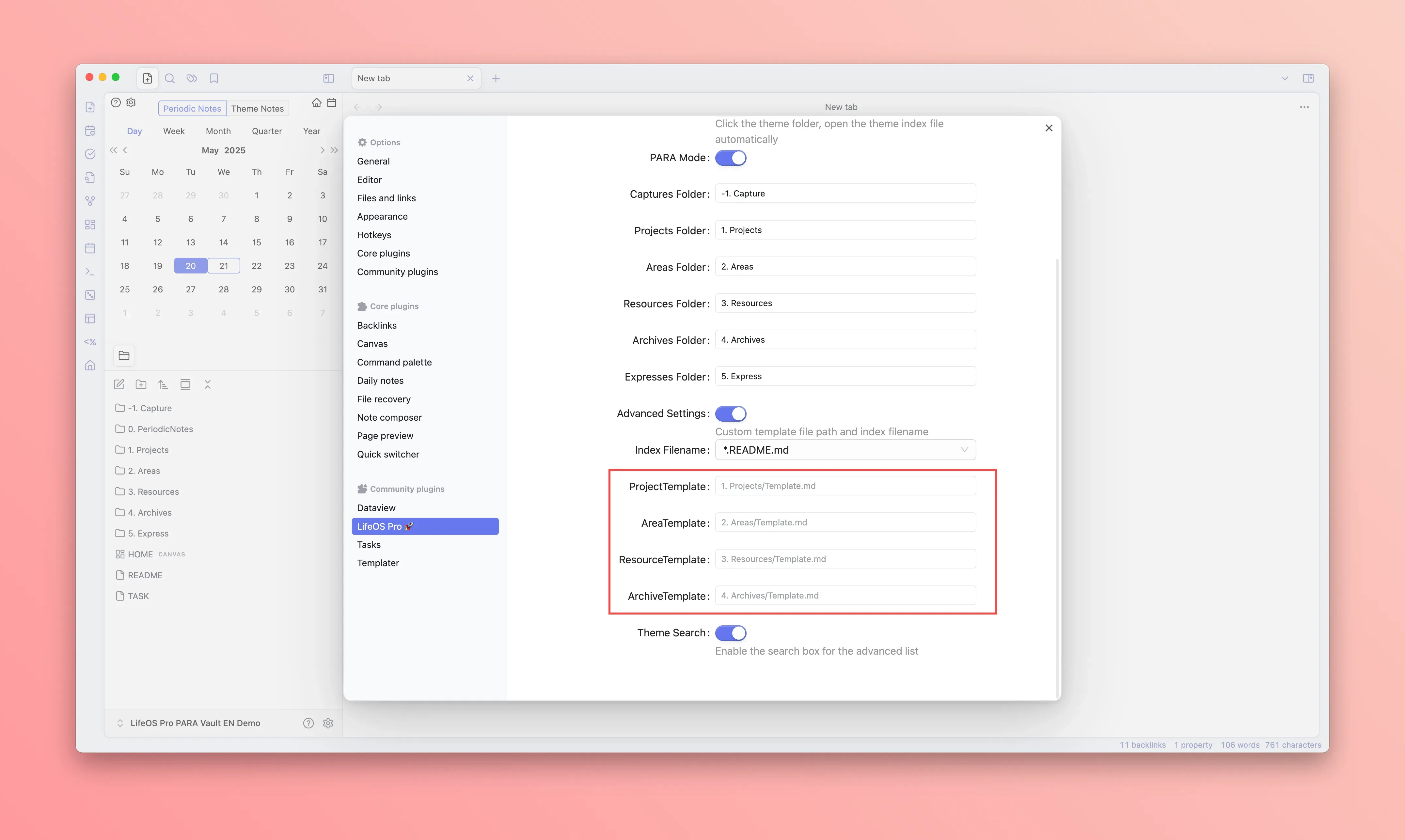
Refer to the image below, configure your theme notes directory and the titles for each module
Refer to the image below, configure your template files for theme notes. Each time you create a theme note, it will use the corresponding template to create a new note
Using a Ready-Made Example Repository

Refer to: "Scenario 2"